Update your account profile
Your account settings hold the personal details tied to your sign-in — your name, the email you log in with, and your password. This is separate from workspace settings, which control your whole organisation. Update your own details here whenever they change.
Before you begin
- You are signed in to Neura.
Steps
- Open Settings, then go to the My account page.
- Review the details in the PROFILE and PASSWORD sections.
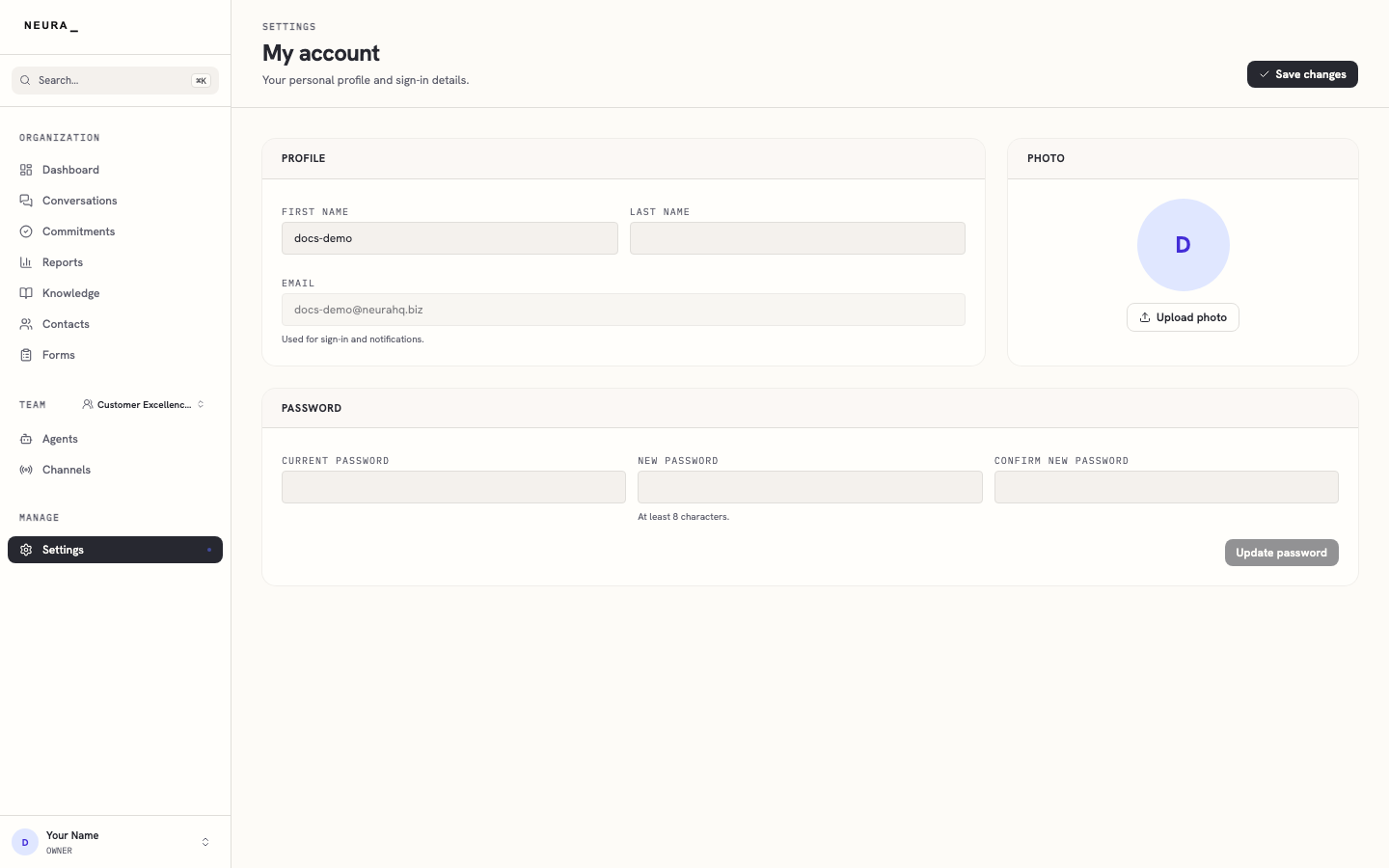
- Enter your updated first name in FIRST NAME.
- Enter your updated last name in LAST NAME.
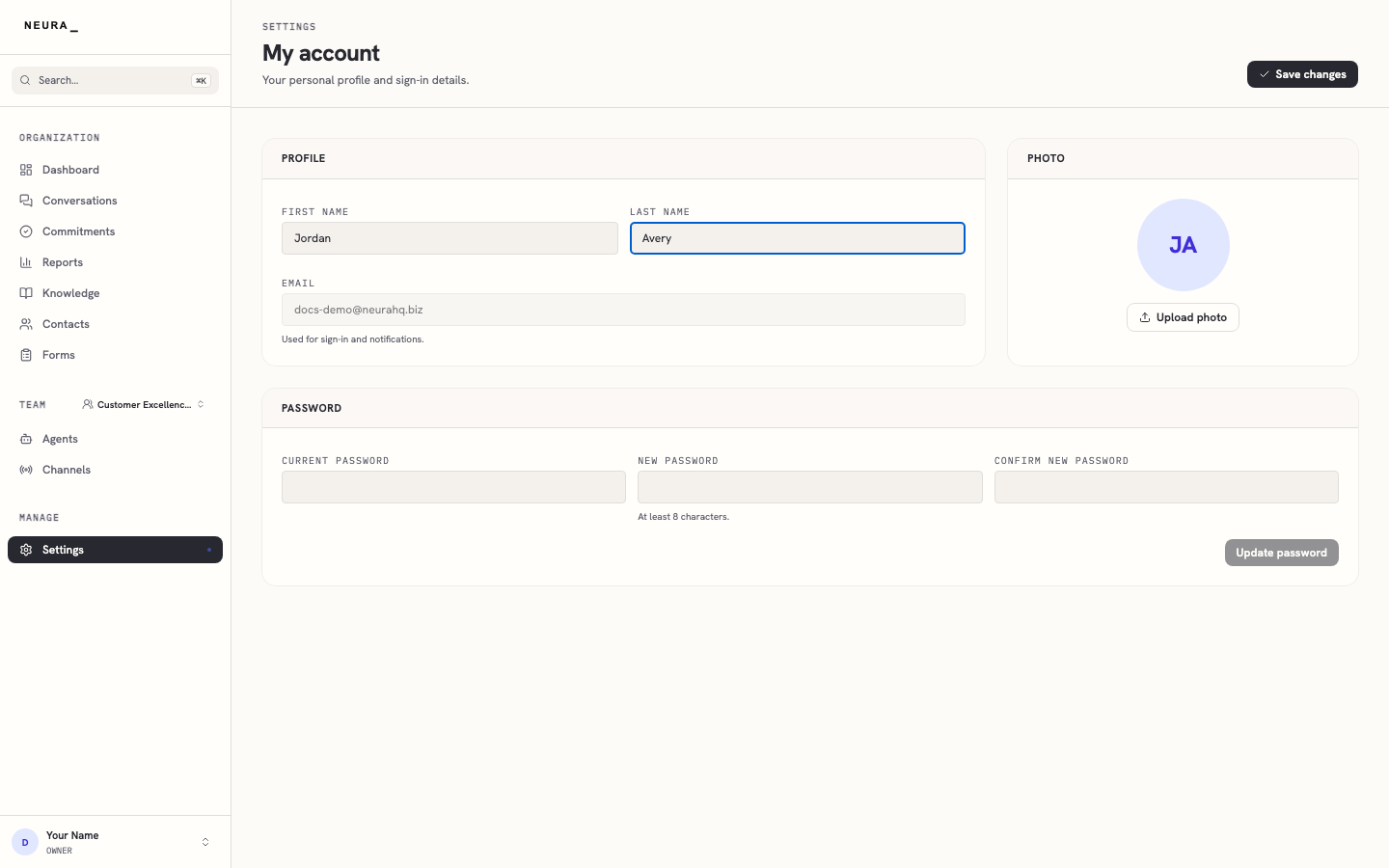
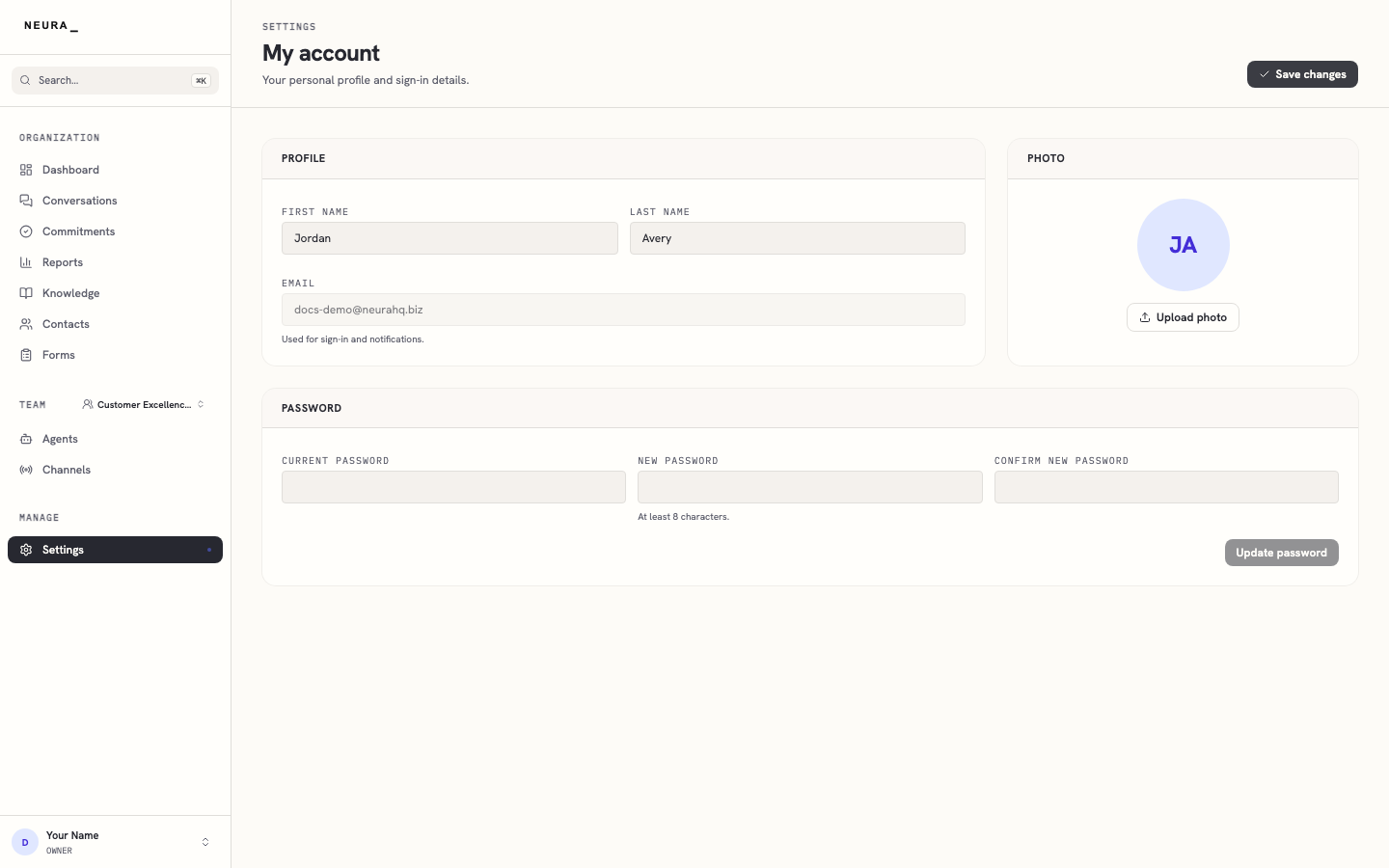
- Click Save changes.
- Confirm the updated name appears on the My account page.
You’ll know it worked when
Your new name is saved and appears next to your profile at the bottom of the sidebar. To change your password instead, fill the password fields and use Update password.