Read and reply to a conversation
The conversations inbox is where every chat from every channel lands. Your AI agents handle most conversations automatically, but you can open any conversation to read the full history and reply yourself when a chat is handed off to you or you want to step in. The list on the left can also be filtered by channel and status so you can find the right conversation faster.
Before you begin
- You are signed in to Neura.
- At least one channel is connected so conversations can arrive (see Connect a web chat channel).
Steps
- Click Conversations in the left sidebar.
- Wait for the inbox to load.
- Browse the conversation list, and use the channel or status filters if you want to narrow what you see.
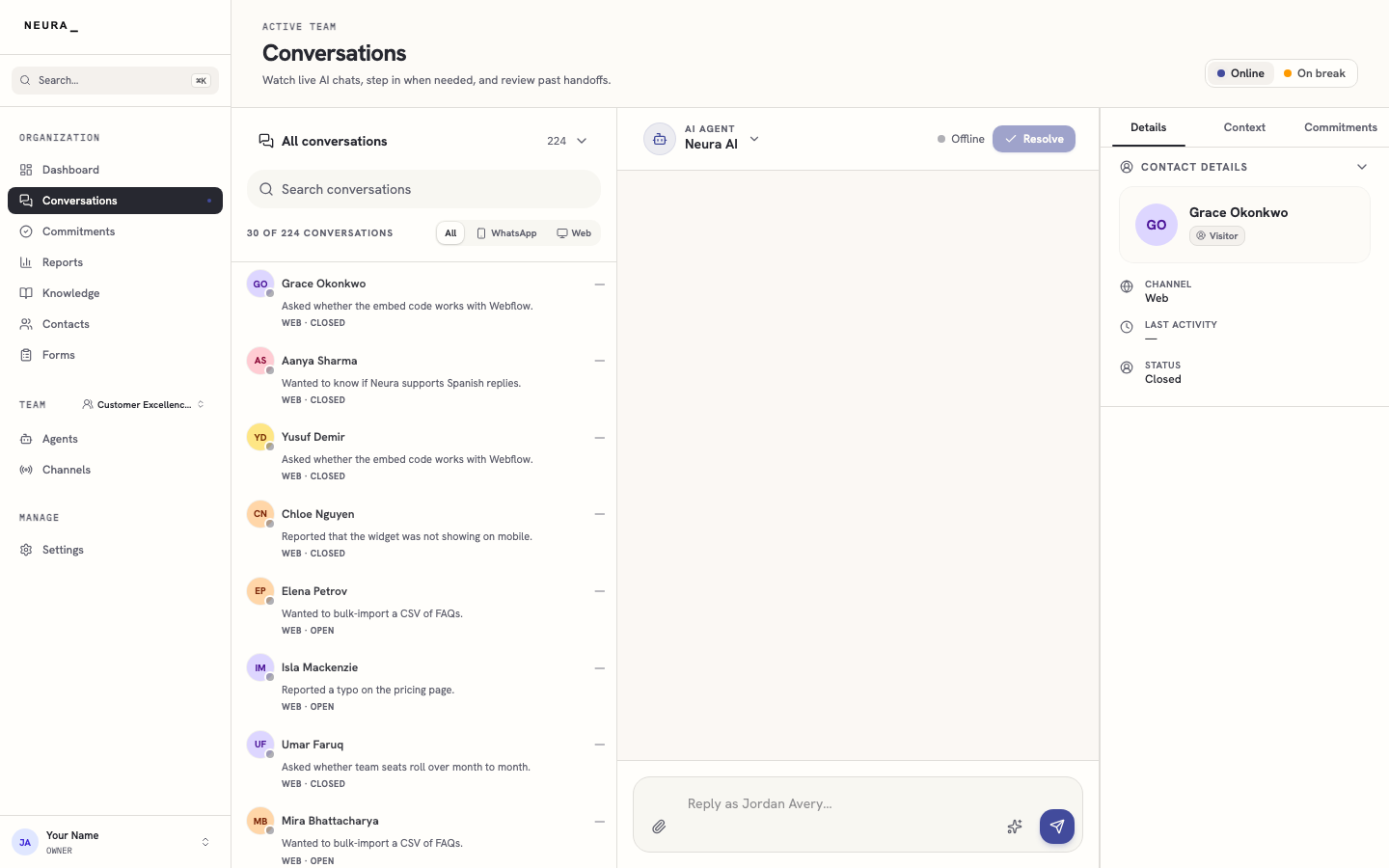
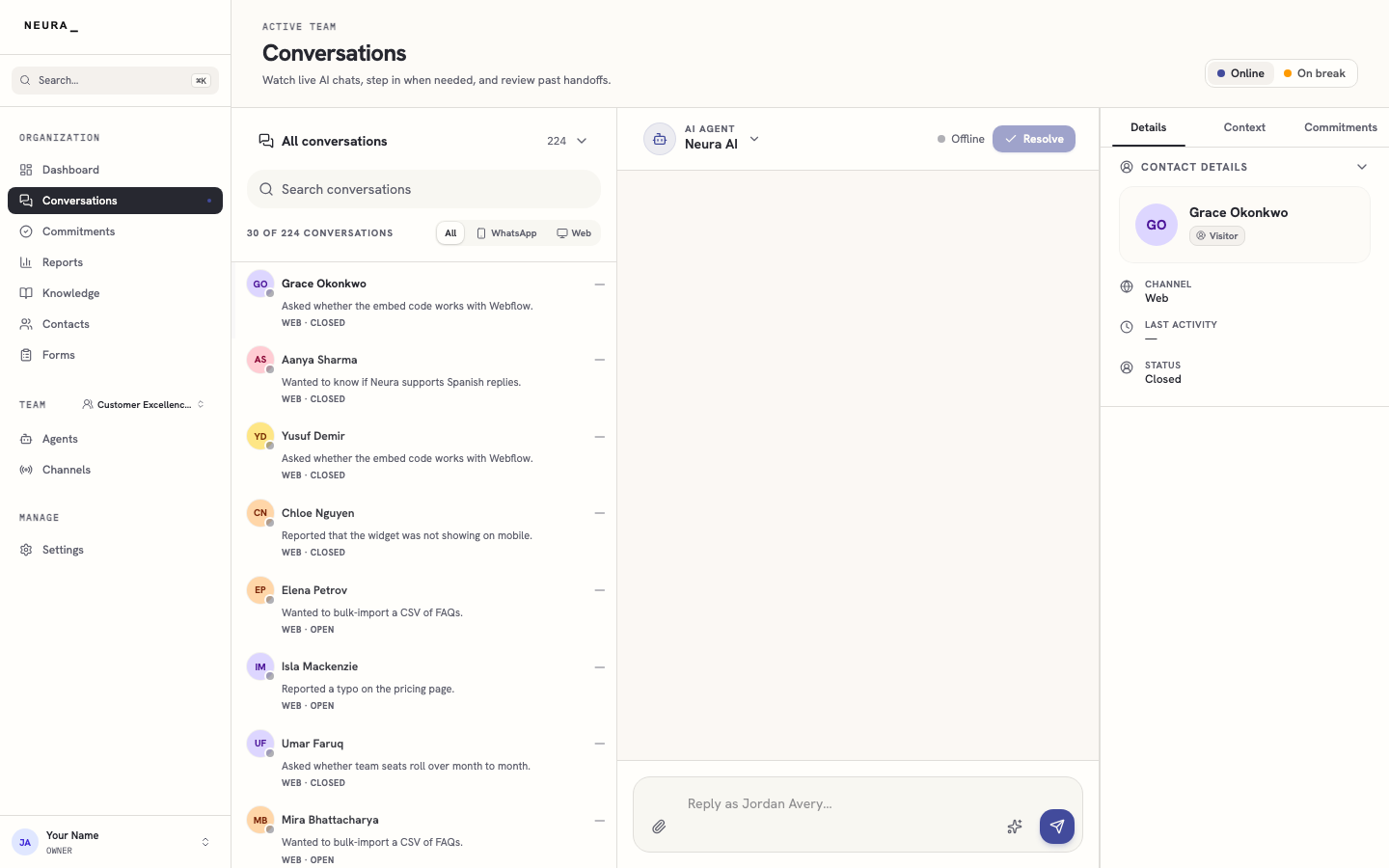
- Click the conversation you want to open.
- Read the full message history in the conversation thread.
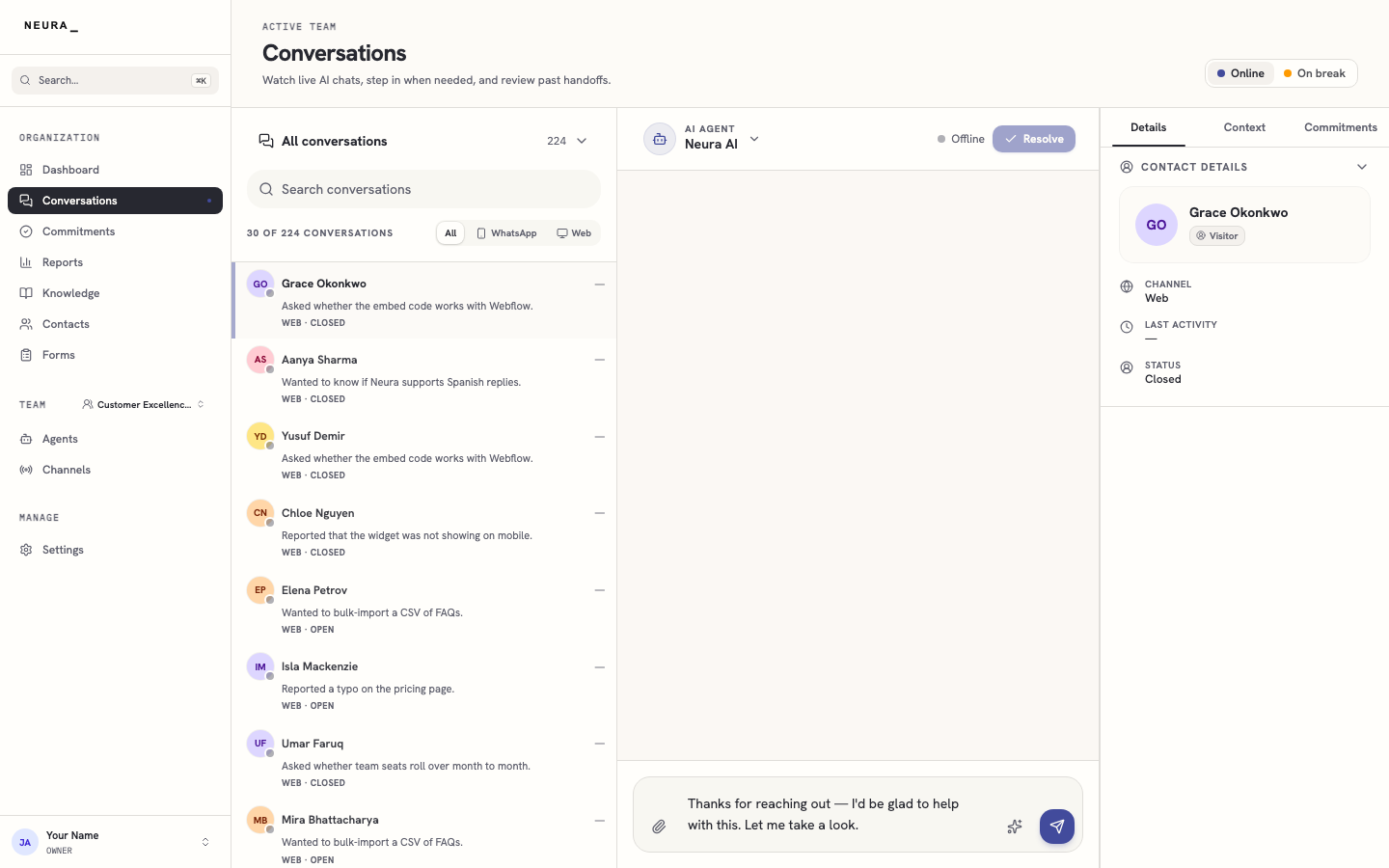
- Type your reply in the message box at the bottom, then send it.
You’ll know it worked when
The conversation opens with its full message history, and the reply you type is ready to send from the box at the bottom. Sent replies appear in the thread immediately.