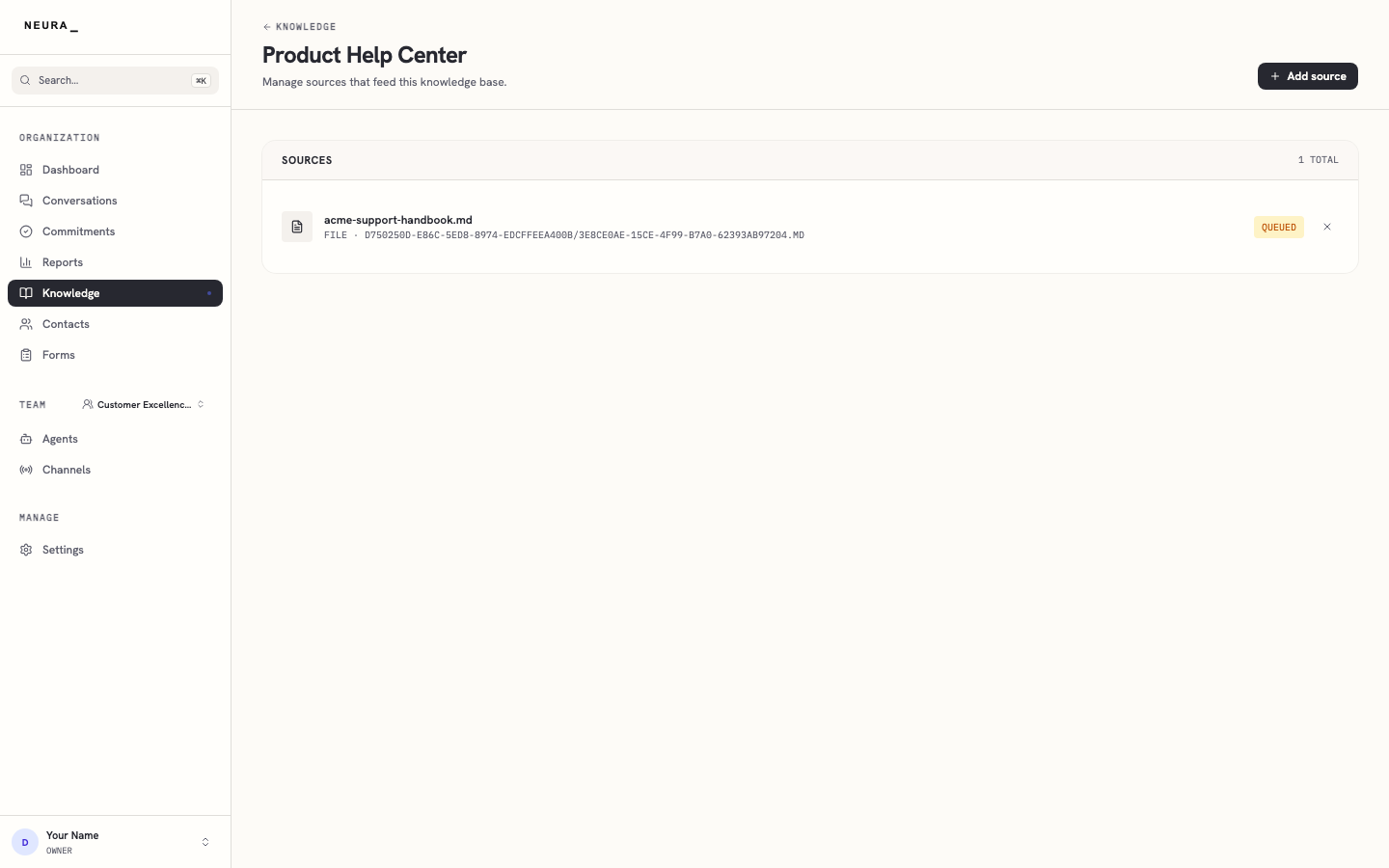
Upload a document to a knowledge base
Upload a file to an existing knowledge base to add it as a source for your agent. This walkthrough shows you how to open a knowledge base, upload a document, and confirm it appears in the source list.
Before you begin
- An active Neura account you can sign in to.
- A knowledge base (we’ll use the one your workspace ships with — see Dashboard tour to find it).
- A document to index (PDF, DOCX, TXT, or Markdown, up to 25 MB).
Steps
-
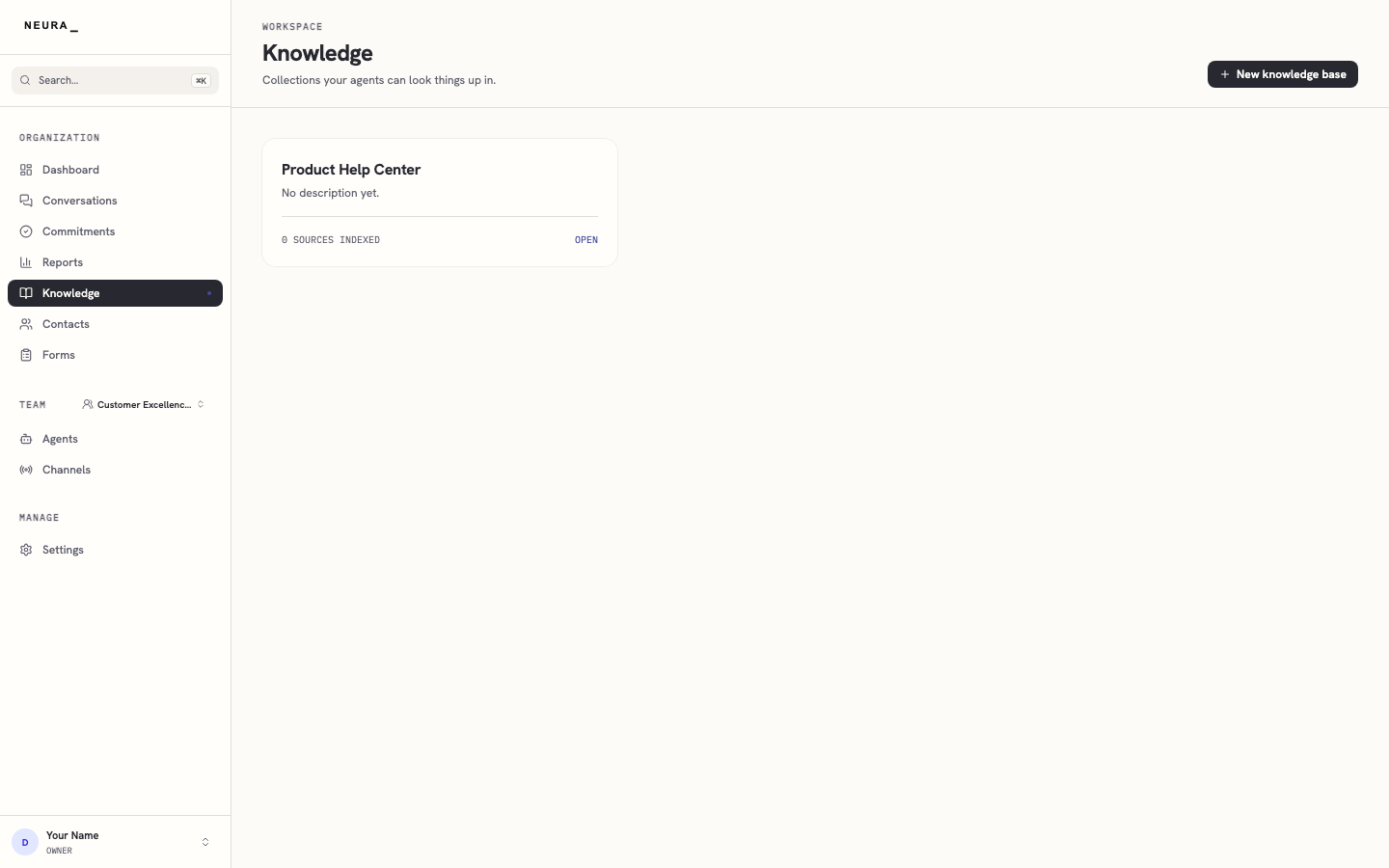
Open Knowledge from the left navigation.
-
Open the knowledge base you want to update.
-
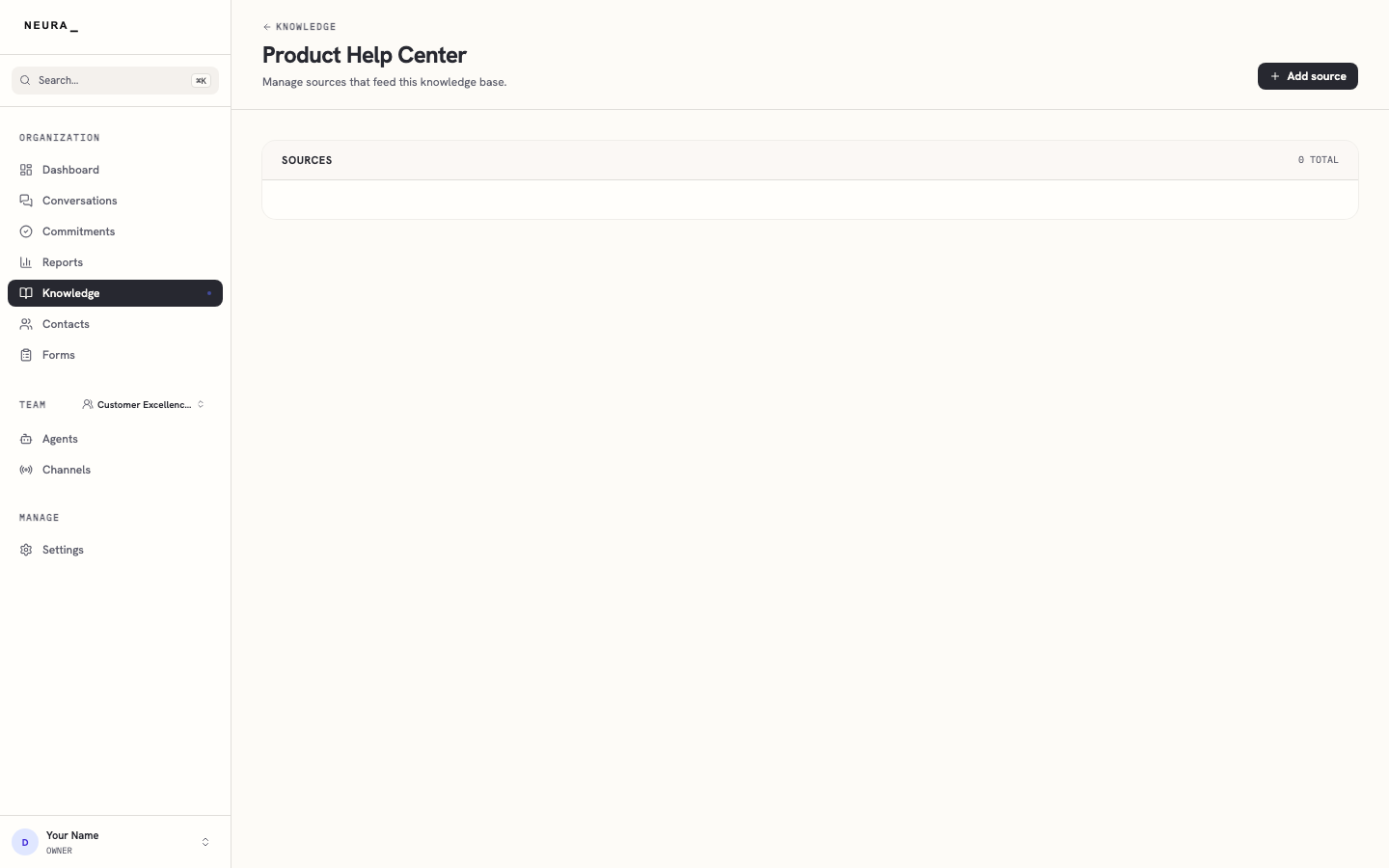
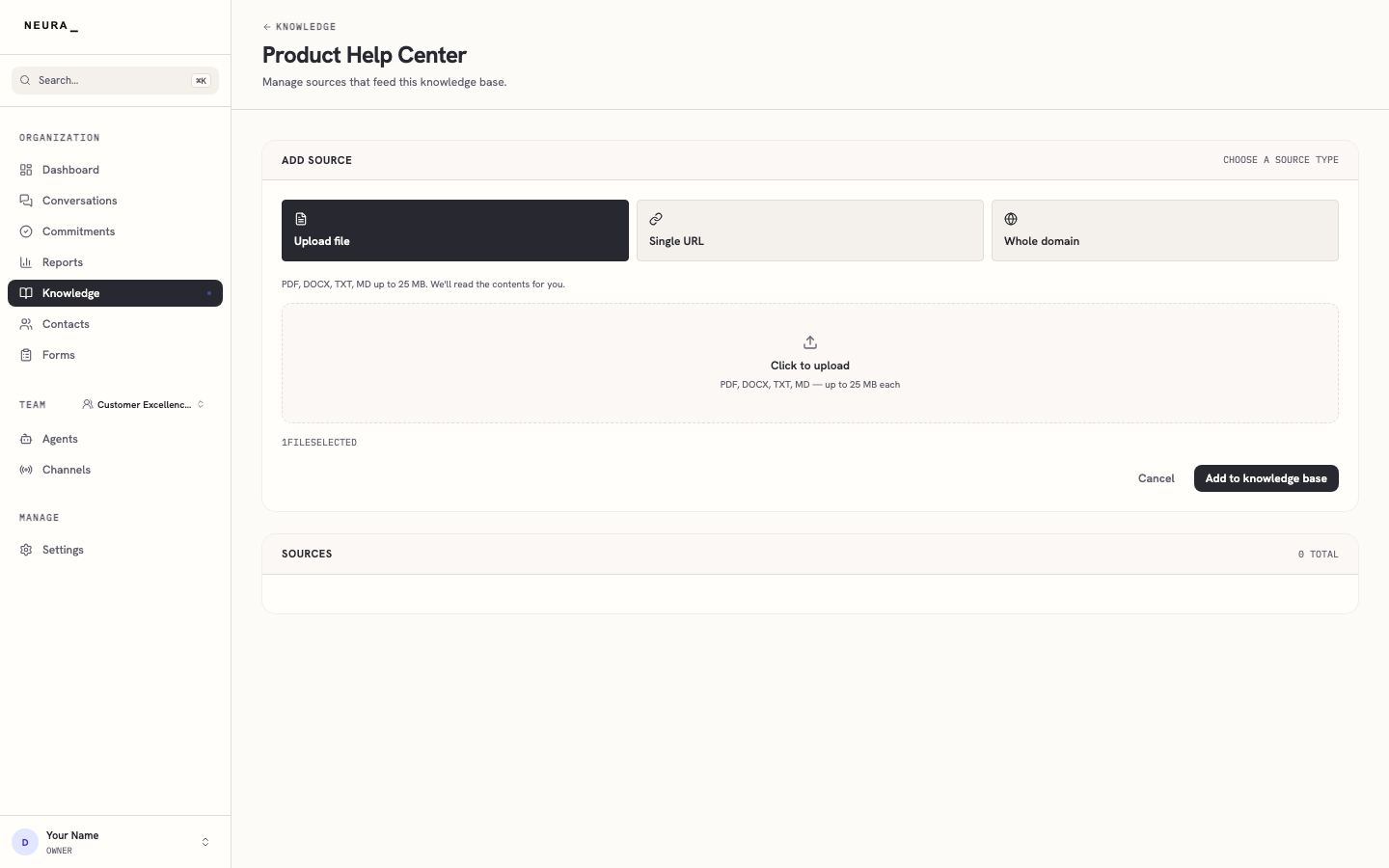
Confirm you are on the knowledge base detail page.
-
Click Add source.
-
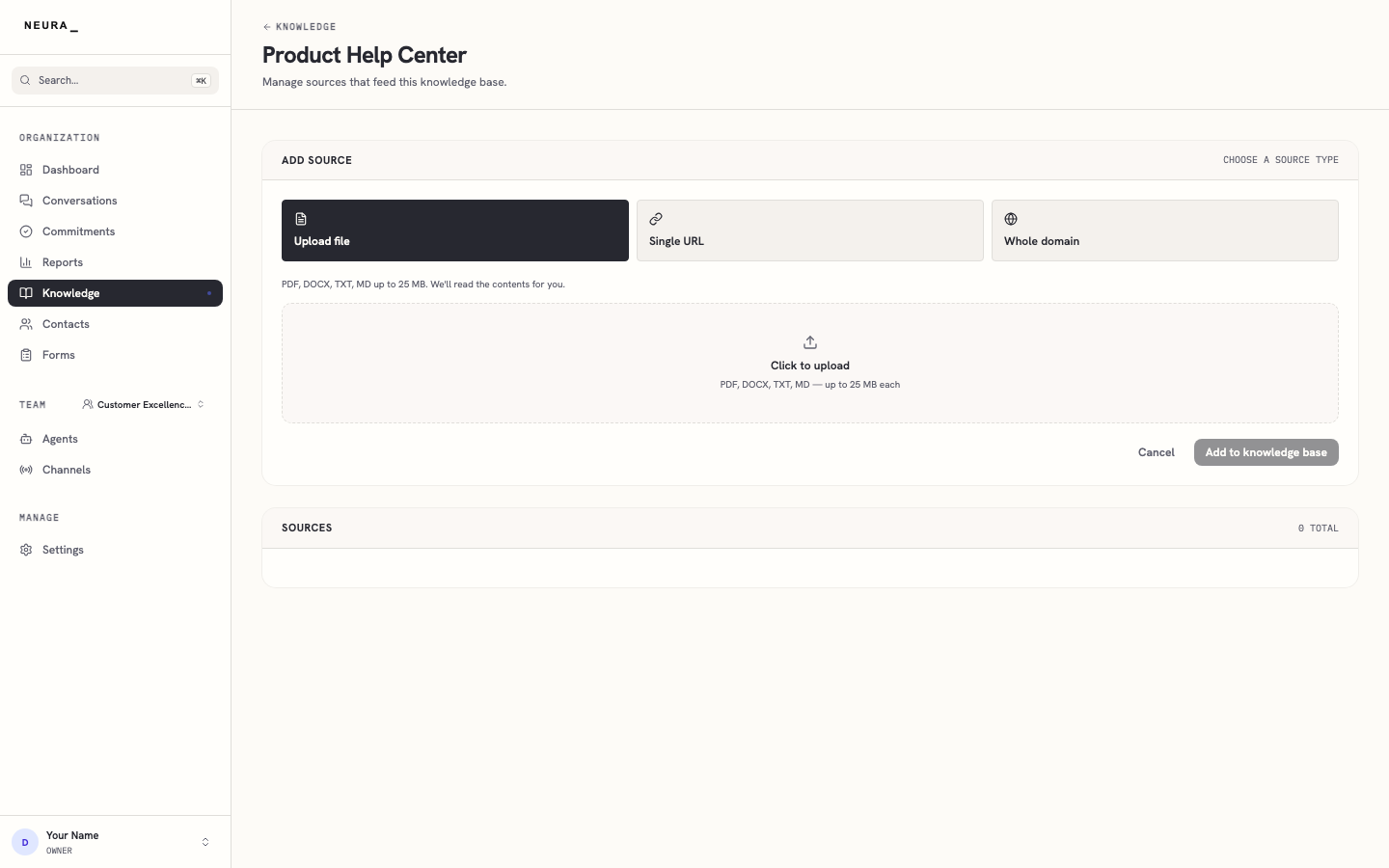
Select Upload file if it is not already selected.
-
Click Click to upload and choose your document.
-
Confirm the upload panel shows 1 FILE SELECTED.
-
Click Add to knowledge base.
-
Review the new file in the SOURCES list.